Reusable Pipelines
Definitions
The processing of an input file is divided into sequential stages forming a linear pipeline:
Load → Filter 1 → Transform → Filter 2 → Aggregate
Each stage has its own configuration parameters and its own dedicated view. When no parameters are specified, a stage behaves as a pass‑through and reproduces the input data unchanged.
The only mandatory stage is Load, which defines the parsing options (precision, date format, etc.) and the column configuration (renaming, ignoring columns, or forcing a column type to string).
Pipelines depend on the file schema (column names and types), not on the data itself. The same pipeline can be applied to multiple files sharing the same schema, and multiple pipelines can be applied to a single file.
For example, an “invoice‑reporting” pipeline can be reused daily on invoice extracts from a database.
Pipelines are defined once and reused many times. They are stored as simple JSON files that can be shared with colleagues or versioned in a Git repository.
This separation of data and processing logic differs from traditional spreadsheet software, where both are mixed. Mammoth CSV sits between spreadsheets and ETL tools: processing is simple and linear, while multiple workflows can share the same initial stages. For instance, the same loading and filtering configuration can feed several different pivot tables.
Pipeline Management

The Pipeline List displays all pipelines that are compatible with the current file schema, including column names and data types.
Versioning
Each time you save a pipeline, a new version is automatically created. This prevents accidental overwrites and ensures that previous configurations remain available. Older versions can be removed manually by opening the pipeline folder in Windows Explorer and deleting the corresponding files. Click Refresh afterward to update the list of compatible pipelines.
Pipeline Files
Pipelines are stored as simple JSON files, which makes them easy to share with coworkers or archive. If you receive a pipeline from an external source, place the file in the pipeline folder and click Refresh to load it into the application.
Typical Workflow
- Preview the file
- Select and load a compatible pipeline
- Click Load All
- Click Execute
Handling Schema Mismatches
When loading a file, multiple load attempts may be required if a column type was not correctly inferred. This can occur, for example, when a column is empty in the preview sample (first 10,000 lines) but contains valid values later in the file. If a mismatch is detected, the application will display a notification.
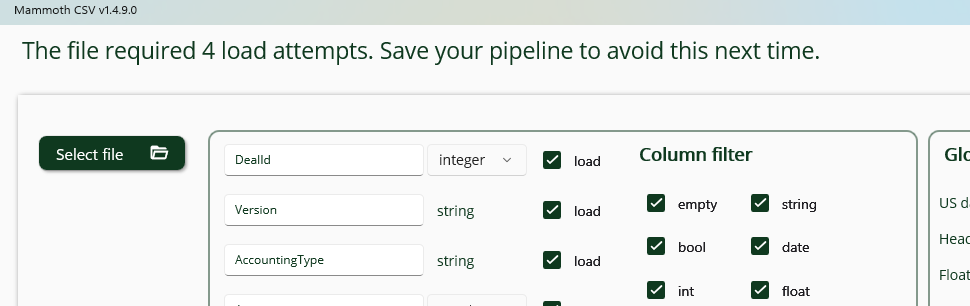
In such cases, you can save and reuse the updated pipeline—which now contains the corrected schema—to avoid repeated reloads for similar files.